How to setup IPTV CNN Server on Fire TV Stick
1: From the home screen of your device, hover over the Find option.
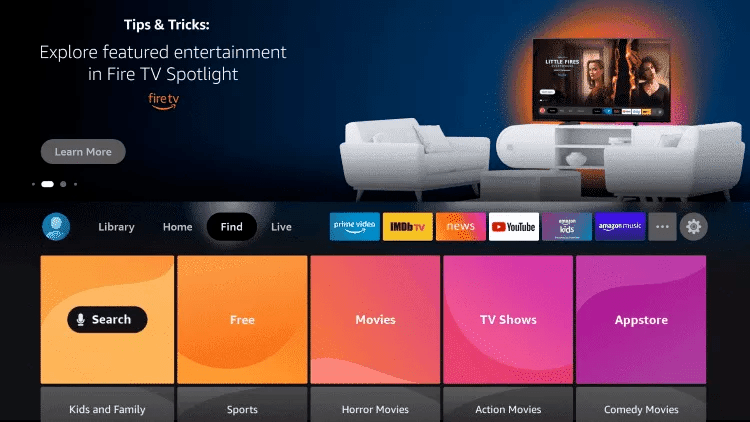
2. Click Search.
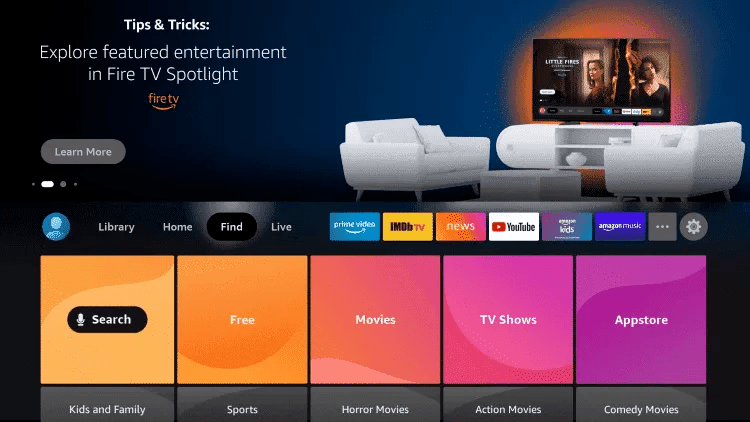
3. Search for and select Downloader.
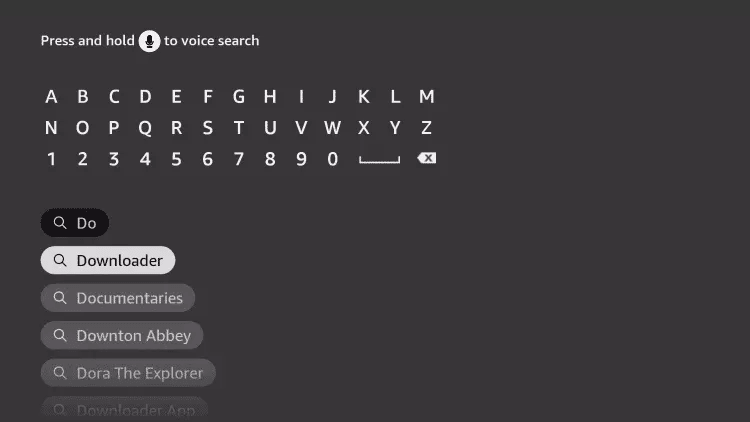
4. Choose the Downloader app.
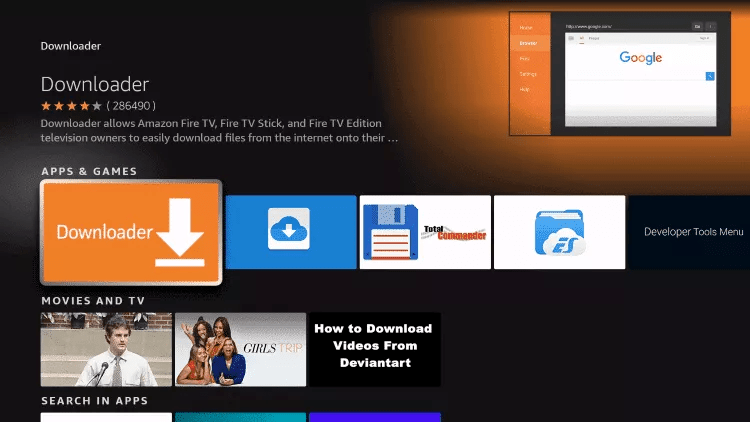
5. Click Download.
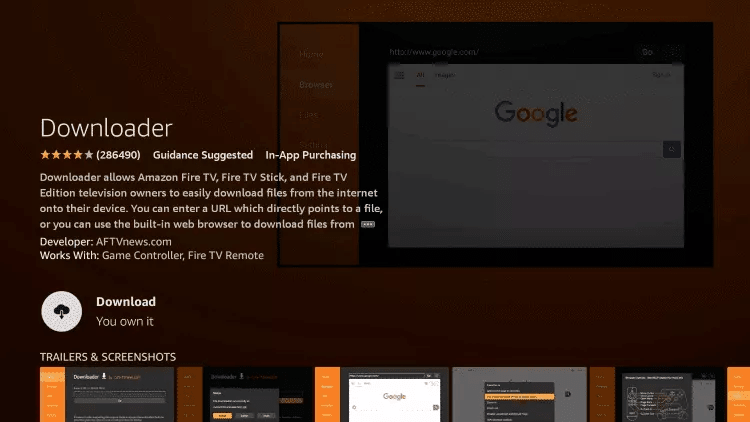
6. Once the installation is complete, simply click Open.
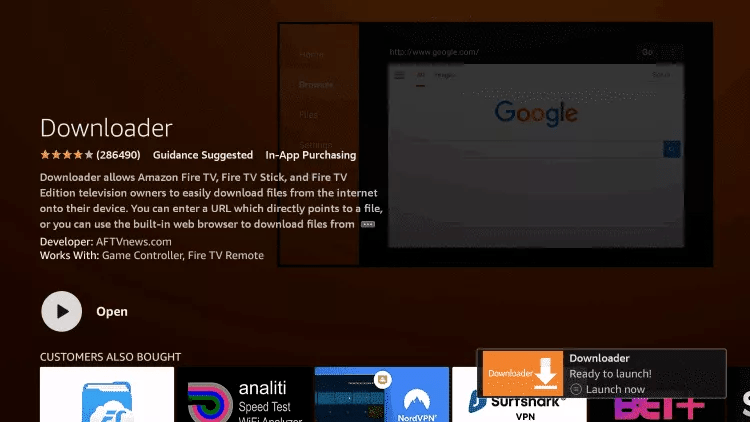
7. Return to the home screen and open Settings.
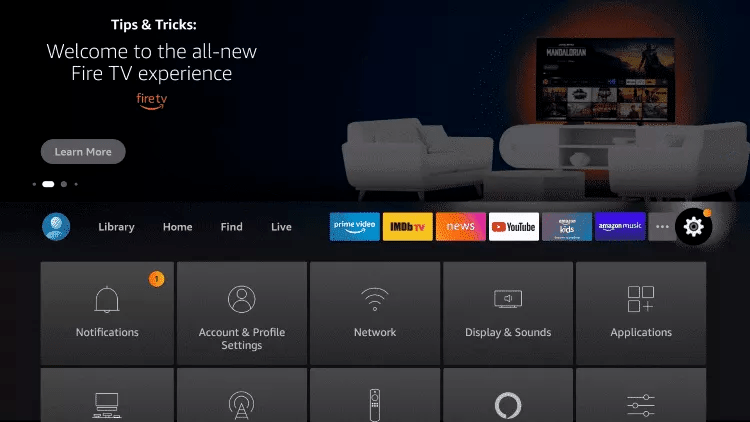
8. Click My Fire TV.

9. Choose Developer options.
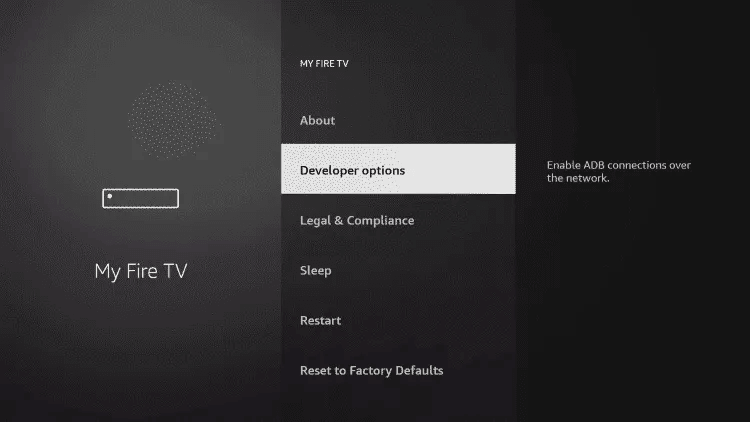
10. Click Install unknown apps.

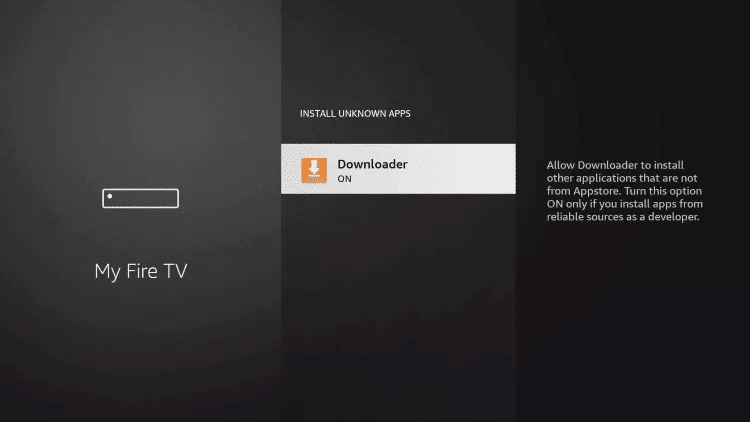
11. Find the Downloader app and click it.

12. This step will turn on “Unknown Sources” for the Downloader app, allowing you to safely install apps from outside the official store (side-loading) on your device.
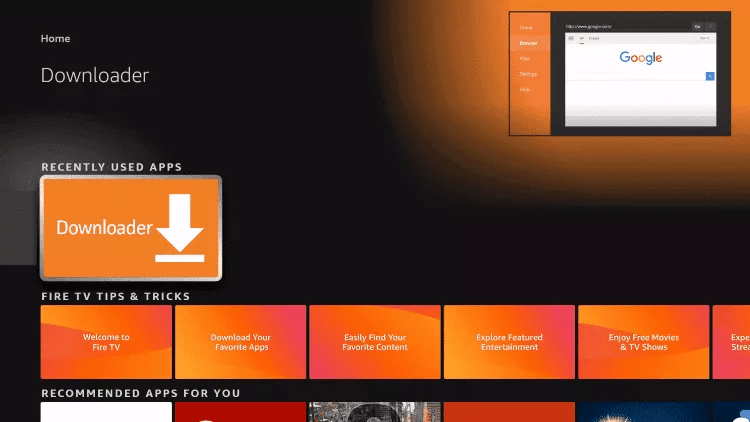
13. Launch Downloader.
14. Click Allow.

15. Click OK.

16. Type the following URL exactly as shown here: https://www.iptvsmarters.com/smarters.apk
and click Go.

17. Wait for file to download.

18. Click Install.
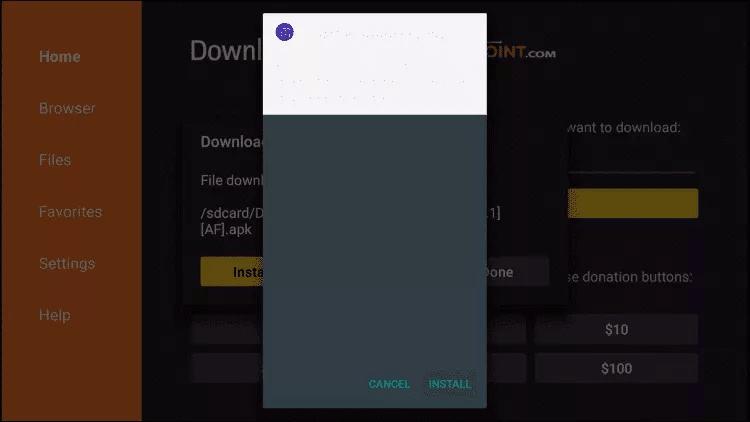
19. Click Done.
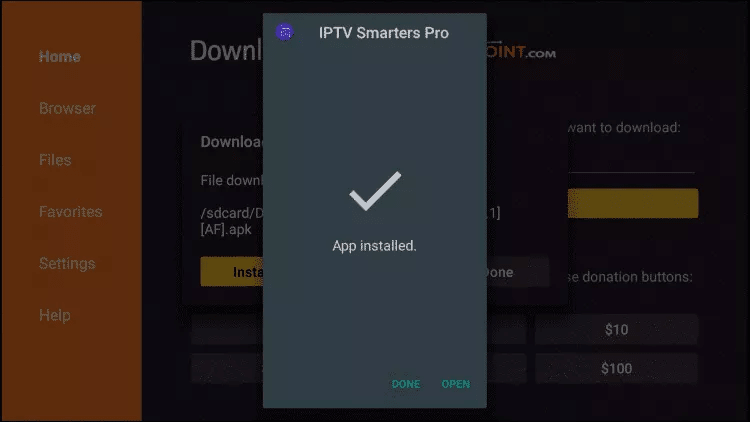
20. Open IPTV Smarters Pro app, then select Login with Xtream Codes API.
21. Enter the Xtream Codes API details that we sent you via Email to login to your Server. Enjoy watching!
FOR TIVIMATE
1. Type the following URL exactly as shown here: https://tivimates.com/tiviapk
and click Go.

2. Wait for file to download.
Wait for the file download to finish
3. Click Install and once the installation is completed. You can open the Player app.
4. Click “Add Playlist“, then choose “Xtream codes“.
5. Enter the Xtream Codes API (login details) that we sent you via Email.
How to setup IPTV CNN Server on Android using Smarters App!
Step 1: Start by downloading IPTV Smarters app through this URL: https://www.iptvsmarters.com/smarters.apk
Step 2: Open the app once downloaded and installed.

Step 3: Enter the login details (Xtream Codes API) that we have provided you after you get a subscription with us.
Now Click on “ADD USER” to proceed to the next section.
Step 4: Wait some seconds.
Step 5: Now click on “Live TV” icon as depicted in the image.
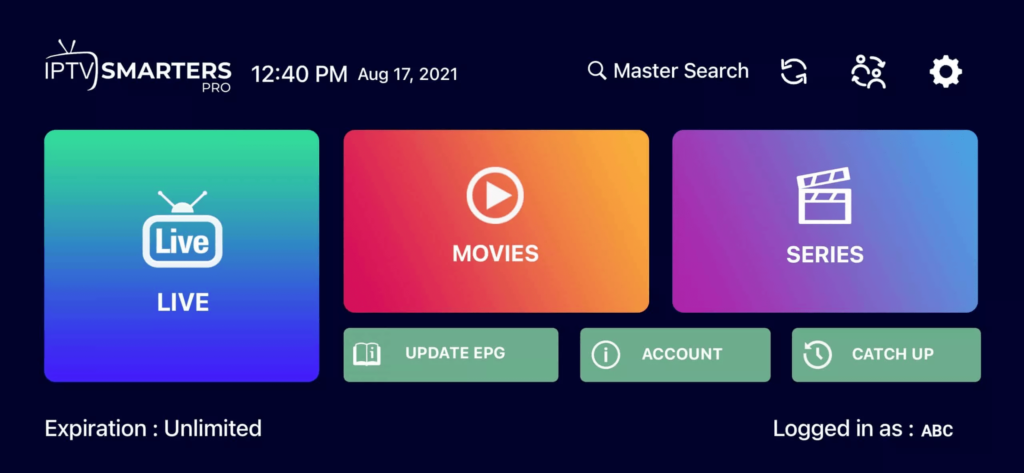
Step 6: Now you must select the channel group that you want to watch and proceed to the next section.
Step 7: Now you must click on the channel name and then double click on the small screen to turn into full screen as the final step.
Done!
How To Setup IPTV CNN Server On Apple/IOS With Smarters Player App
Step 1: First, Download Smarters Player lite app from the Apple Store through this URL : https://apps.apple.com/app/iptv-smarters-pro-player/id6738712575
or you can search for it on App store
install the app on your IOS device.
Step 2: Open the app once installed.
Step 3: Choose Xtream Codes API, then Enter your login details that we have provided you after you get a subscription with us.
Now, Click on “ADD USER” to proceed to the next section.
Step 4: Wait some seconds.
Step 5: Now click on “Live TV” icon as depicted in the image.
Step 6: Now you must select the channel group that you want to watch and proceed to the next section.
Step 7: Now you must click on the channel name and then double click on the small screen to turn into full screen as the final step.
Step 8: To add EPG no need to add any EPG url, Just click on “Install EPG” .
Done!
Step 1: You can downloadIPTV Smarters Pro, IboPlayer, Tivimate, SetIPTV / NetIPTV / Smart IPTV.. etc from your TV Store on Samsung, LG …
Step 2: After the installation, open the app and enter your Xtream Codes API if the app require that. Some player apps gives to you the MAC Address on screen as you see in the image.
EX :

Step 3: Send us the MAC address via Email.
Step 4: After few minutes, restart/reboot your TV and Open the app to Enjoy!
Done!